

What You’ll Build
- A Mastra agent that thinks like a seasoned home cook.
- Tools for helpful interactive features—substitute ingredients, create recipes.
- A conversational UI (React example provided).
- A deployable agent available via Mastra’s API.
Prerequisites
- A Mastra project (
npx create-mastra@latest my-mastra-app). - Node.js installed.
- OpenAI API key in
.envasOPENAI_API_KEY. - Optional: Familiarity with Zod schema for structured output.
Step 1
Create the Tools
1
Substitute tool
Create a tool to suggest ingredient substitutions.
2
Recipe tool
Create a tool that generates a simple recipe from a pantry list.
src/tools/suggest-substitute-tool.ts:
src/tools/recipe-from-pantry-tool.ts:
Step 2
Create the Agent
src/agents/chef-agent.ts:
Step 3
Register the Agent in Mastra
src/mastra/index.ts:
The key inagents: { chef: chefAgent }determines the API path:/api/agents/chef/*.
Step 4
Run the Agent
From your project root:Step 5
Deploy & Production
Ping test
Ping test
Temporary public tunnel
Temporary public tunnel
Use a tunnel to test the agent before full deployment:
Append /api/agents/chef/generate and copy the HTTPS URL into the Dashboard.
Vercel serverless example (TypeScript)
Vercel serverless example (TypeScript)
Production patterns
Production patterns
- Serverless: Single lightweight function calling the agent.
- Container: Long‑lived process; add health checks & logging.
- Edge: Keep tools stateless; externalize persistence.
Security essentials
Security essentials
- Rate‑limit (per IP + user).
- Add auth (Bearer/JWT) for non-public usage.
- Log tool calls (name, duration, success/error).
CometChat mapping
CometChat mapping
Deployment URL = public HTTPS endpoint +
/api/agents/chef/generate. Mastra Agent ID = chef.Step 6
Configure in CometChat
1
Open Dashboard
Open the CometChat Dashboard.
2
Navigate
Go to your App → AI Agents.
3
Add agent
Set Provider=Mastra, Agent ID=
chef, Deployment URL=your public generate endpoint.4
(Optional) Enhancements
Add greeting, prompts, and configure actions/tools if you use frontend tools.
5
Enable
Save and ensure the agent toggle shows Enabled.
Step 7
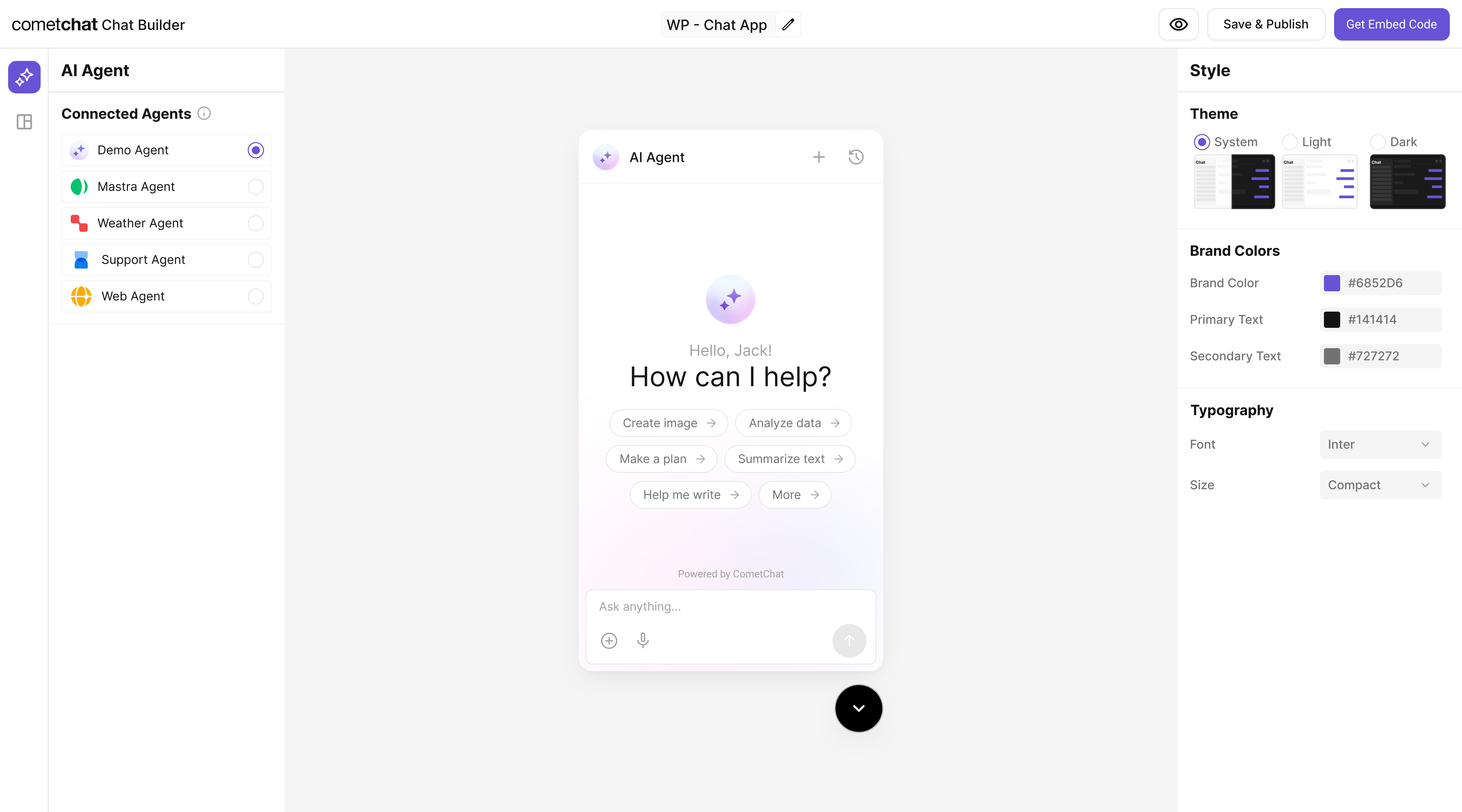
Customize in Chat Builder
1
Open variant
From AI Agents click the variant (or Get Started) to enter Chat Builder.
2
Customize & Deploy
Select Customize and Deploy.
3
Adjust settings
Theme, layout, features; ensure the Mastra agent is attached.
4
Preview
Use live preview to validate responses & any tool triggers.
Step 8
Integrate
Once your agent is configured, you can integrate it into your app using the CometChat No Code - Widget
No Code - Widget

React UI Kit
Pre Built UI Components
Note: The Mastra agent you connected in earlier steps is already part of the exported configuration, so your end-users will chat with that agent immediately.
Step 9
Test Your Setup
1
API generates response
POST to
/api/agents/chef/generate returns a recipe or suggestion.2
Agent listed
/api/agents includes “chef”.3
Tool action works
UI handles
suggest-substitute tool invocation.4
Full sample test (run curl)
See curl command below.
Troubleshooting
- Agent not found: Check the
agentsmap inmastra/index.ts. - Tool not firing: Ensure the
idmatches exactly between the tool file and the agent. - API key errors: Confirm
OPENAI_API_KEYis set.
Next Steps
- Add more tools (e.g., nutritional info, shopping list builder).
- Add a workflow to decide automatically between quick tips and full recipes.
- Localize outputs for different languages.